
SearchWell - Convert a CSV to a KML file
SearchWell requires that the CSV file contains a date, a latitude and a longitude column.
These can be found anywhere in the number of columns, but the Date must have a colon (:) between the hours and minutes.

•A: From the main menu in SearchWell, select "Search Planning" and then "Convert a CSV file to a KML file"

•A: Click on the "Get CSV File" button, and you will be asked to find the folder and the file you want to convert.
•B: Move to the folder in which the required file is saved and highlight the required file.
•C: Click on the "Open" button.

•A: The name of the file you selected is displayed, and the rest of the form will be displayed
•B: You will be asked to select the Date, Latitude and Longitude columns from drop-down lists by clicking on the small arrow to the right of the green box. If the CSV file contains headers, the column headers will be displayed, alternatively, if there are no column headings the first row of data will be displayed.
•C: Give the name of the vessel - this will be used in the name of the KML file
•D: Select a color of the track points and lines. This is used to clearly illustrate the tracks of different vessels
•E: Click on the "Save" button
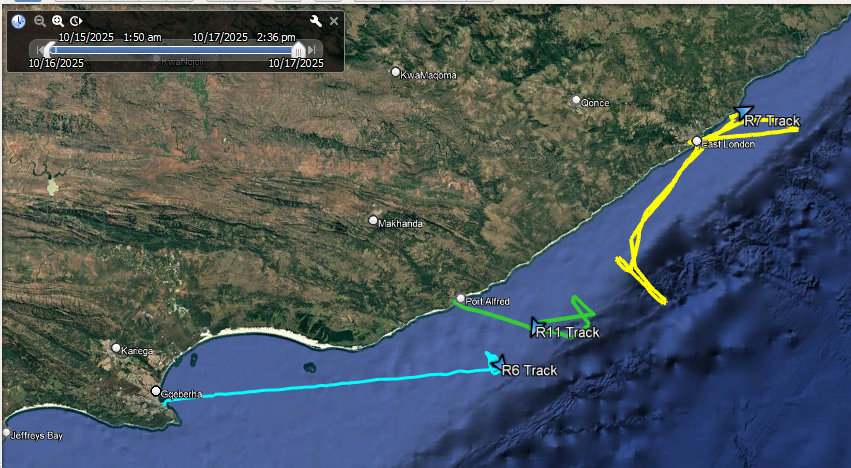
•Import the newly created KML file into Google earth and it will be displayed on the screen. In the screen grab above, the KML file is associated with a "time slider", so the tracks can be animated, and the slider can be taken to any specific time and it shows where the vessel(s) was at the chosen time,
Created with the Personal Edition of HelpNDoc: Experience the Power and Ease of Use of HelpNDoc for CHM Help File Generation